
Clearer territories, more precise analytics, and more context at a glance: Release v.17 in Proxima Cloud CRM

release 17 proxima cloud crm

In July 2026, Proxima Cloud CRM received two consecutive updates: v.17 on July 3 and v.17.1 on July 17. The updates cover field team operations, Power BI analytics, and system administration, improving the user experience.

In this article, we take a detailed look at all the updates and show which changes are already available in client environments.

We regularly cover all updates on our blog — follow the latest news.

Contents

1. Key changes in versions 17.0 and 17.1:

  • more informative custom object lists with multiple Label fields and search across them;
  • consistent multipolygon coloring and selective Voronoi polygon generation in GeoForce;
  • a new Power BI report for analyzing non-call activities;
  • E-mail and Phone Number contact fields in the HCP ALL report;
  • separate 12- or 24-hour time format settings for each role;
  • Filter Manager for centralized filter creation, editing, copying, and deletion;
  • Microsoft Teams online meetings for CRM calls through Link Outlook.

2. Release v.17.0 — July 3, 2026

Our team focused on giving field teams and administrators more context exactly where they work: enhanced custom object lists, improved territory management in GeoForce, and new analytics for non-call activities. We also improved role and time format settings.

Users get more information without unnecessary transitions between screens, while administrators get more flexible tools for configuring Cloud CRM roles, objects, and filters.

Release v.17.0 infographic

2.1. What changed in Proxima Cloud CRM Product

The product updates simplify administration, work planning, and the everyday workflows of field teams.

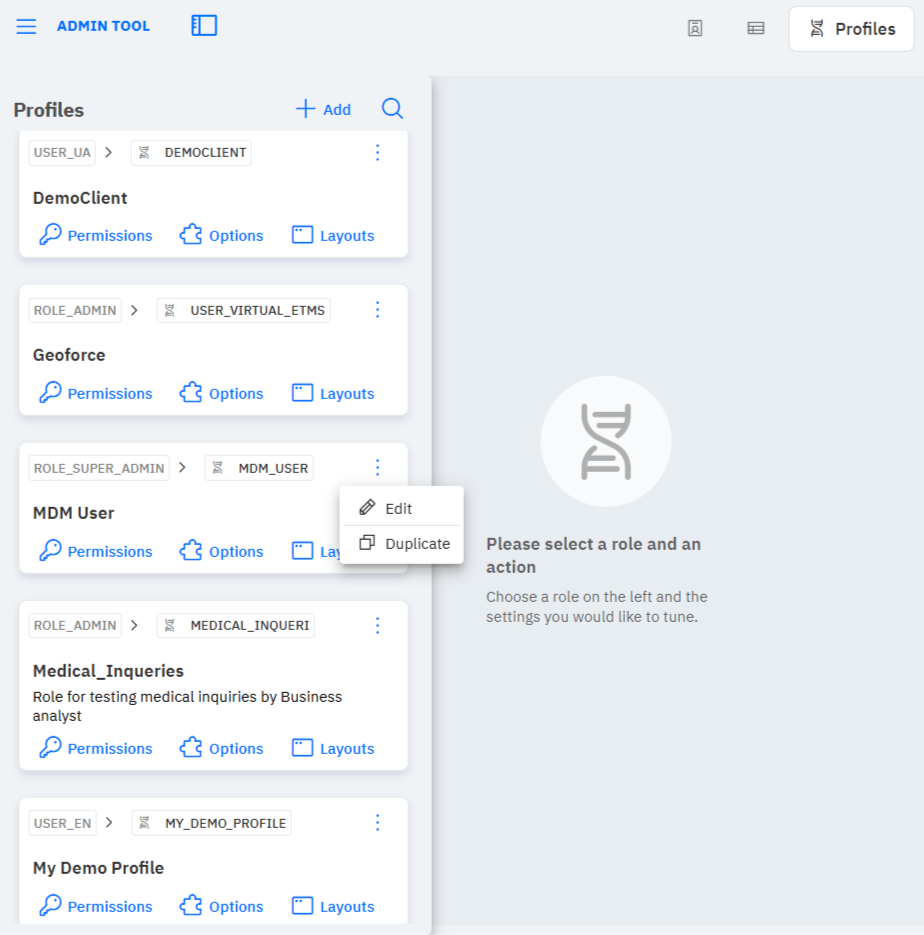
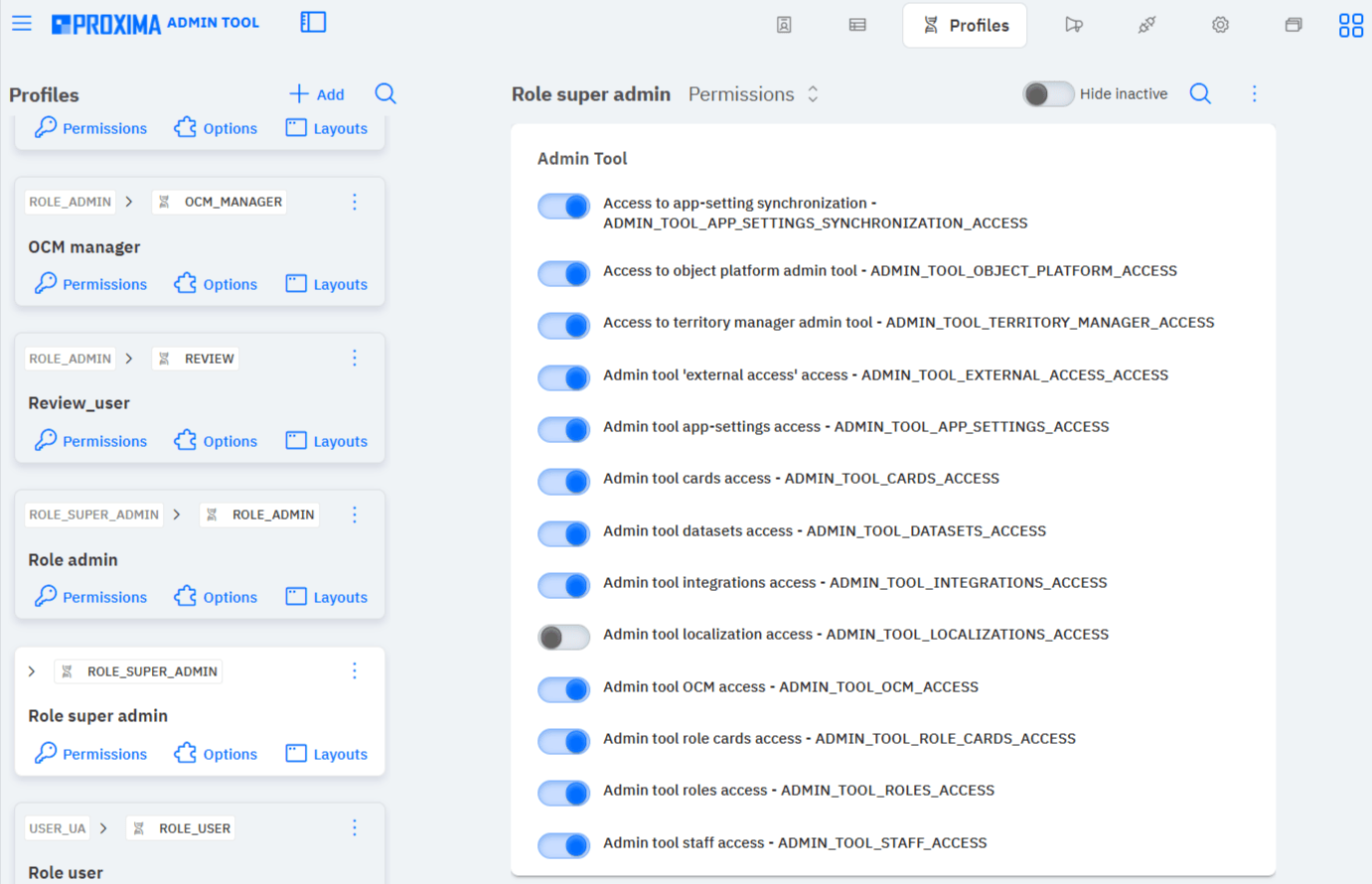
  • All system roles in AdminTool → Profiles

In AdminTool → Profiles, users can see all available system roles. An administrator can manage every role, including the Super admin role. The relevant Permissions, Options, and Layouts settings are available for the selected profile.

Screenshots 1–2. AdminTool → Profiles: system roles and available profile actions. Permissions settings for the selected system role in AdminTool → Profiles.

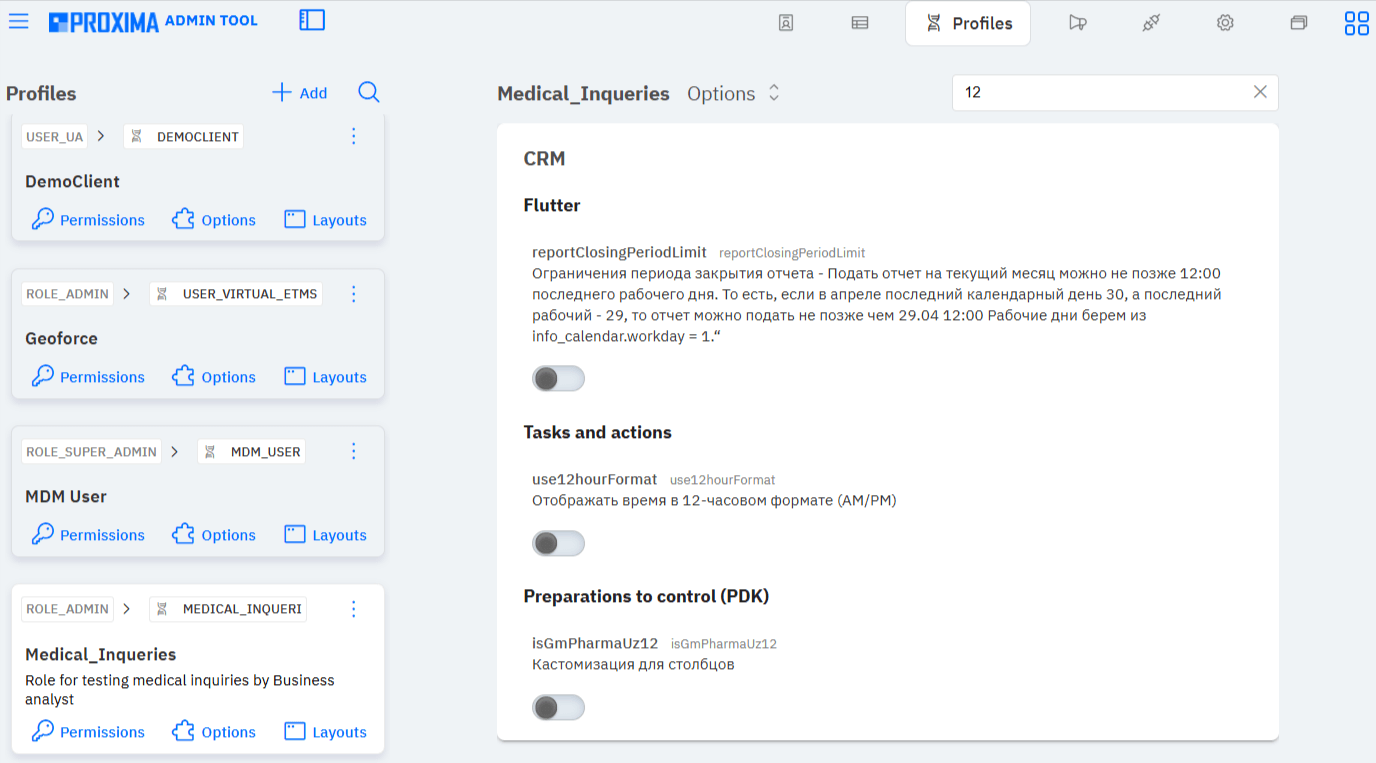
  • 12/24-hour time format for each role

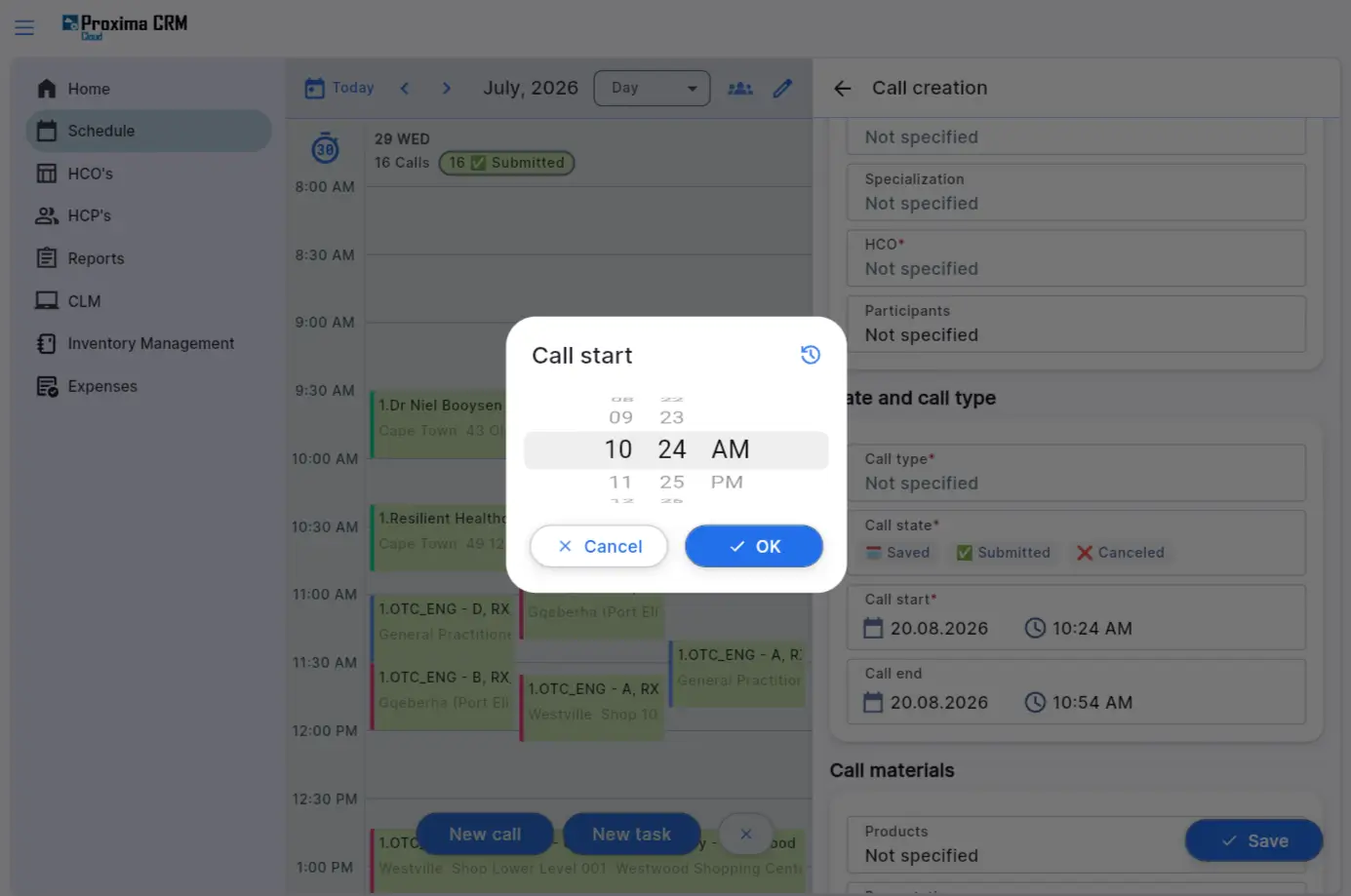
In the role settings, an administrator can define the time format separately. By default, the 24-hour time format is used, from 00:00 to 23:59. If the administrator enables the use12hourFormat option, time for that role is displayed in the 12-hour AM/PM format. To keep the 24-hour format, the option must remain disabled. This makes it possible to adapt the interface to the local requirements of different teams. The setting applies when activities are created and in the schedule: time is displayed in the format defined for the role.

12_hour_Format
Screenshot 3. AdminTool → Profiles → Options: the use12hourFormat option for the selected role.
use_12_hour_Format_plan
Screenshot 4. AM/PM time displayed when creating an activity for a role with the 12-hour format enabled.
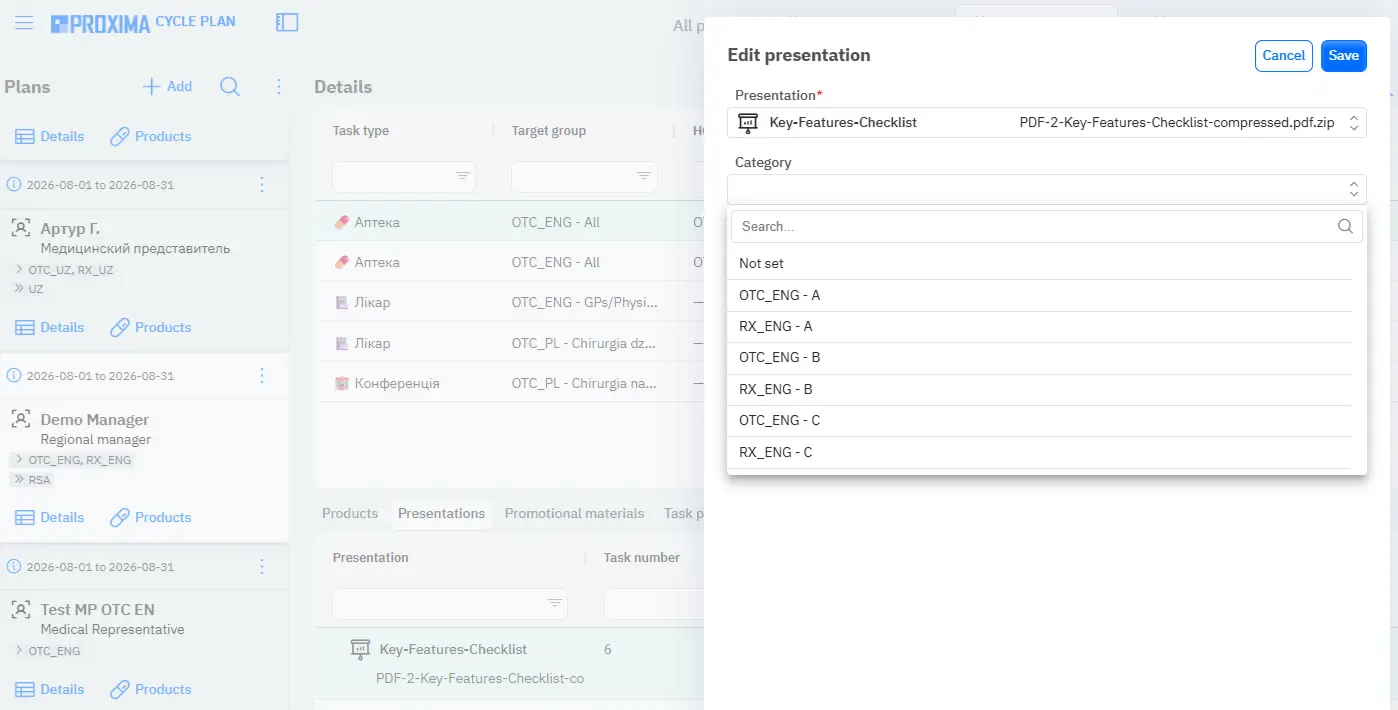
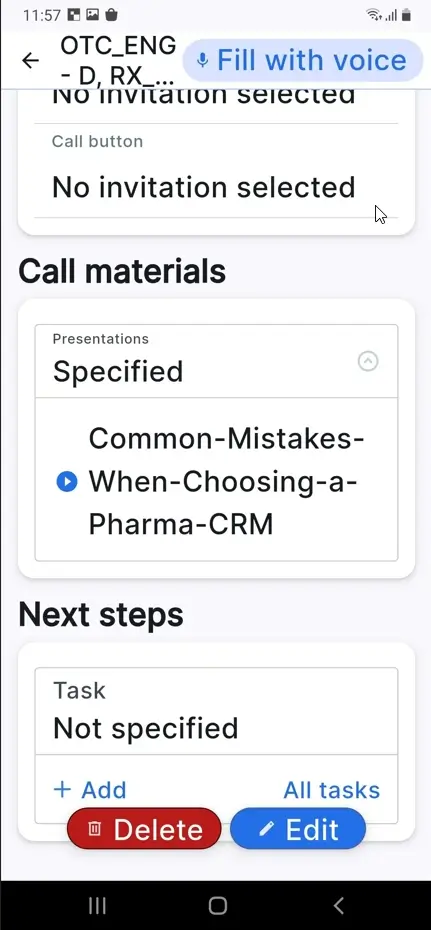
  • Presentations in Cycle Plan without a product line assignment

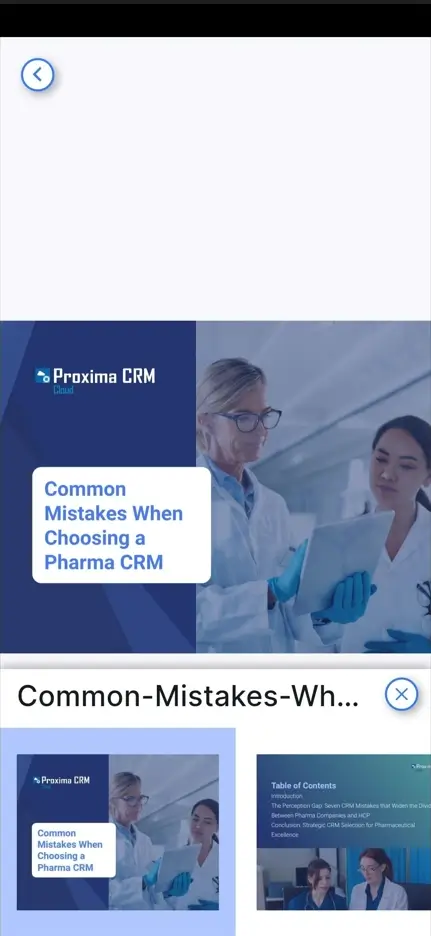
Managers can add any presentation to Cycle Plan details regardless of the product line. This simplifies cycle preparation and provides greater flexibility when planning medical representative activities. Presentations not linked to a product line are correctly transferred to the user’s tablet.

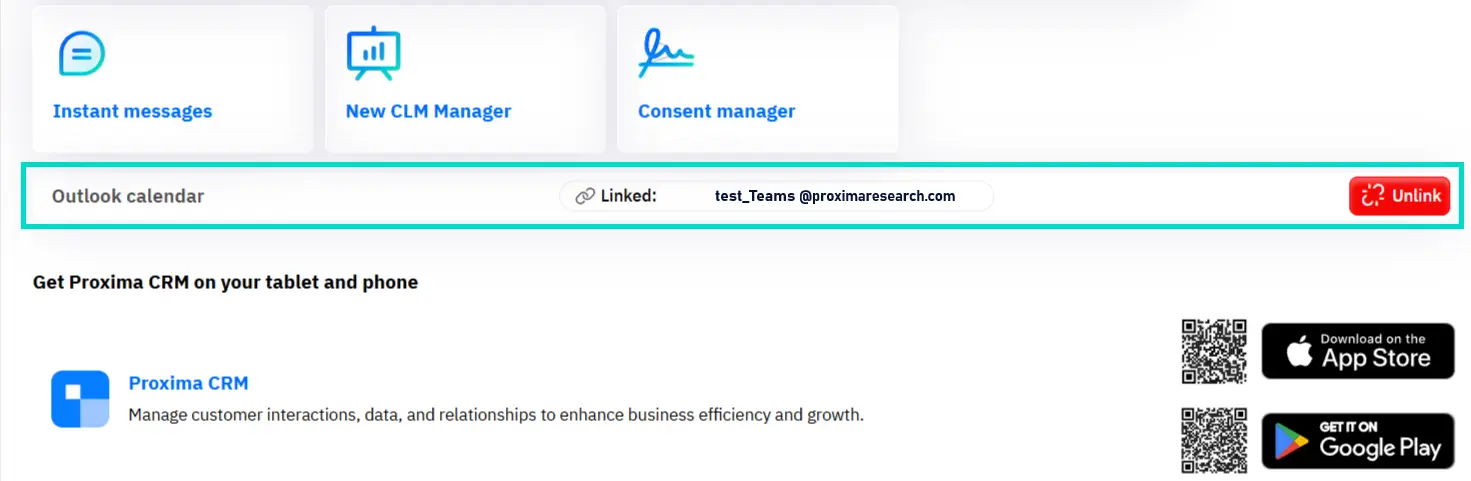
Cycle_Plan_Prez
Screenshot 5. Cycle Plan: adding a presentation without a product line assignment.

Screenshots 6–7. A presentation added to Cycle Plan without a product line assignment is available in visit materials on the mobile device and opens correctly.

  • Historical data in responsibility analytics

Analysts can view client, organization, and category data as of any date in the past. This helps them accurately assess changes in responsibility areas and compare field team results in the appropriate historical context.

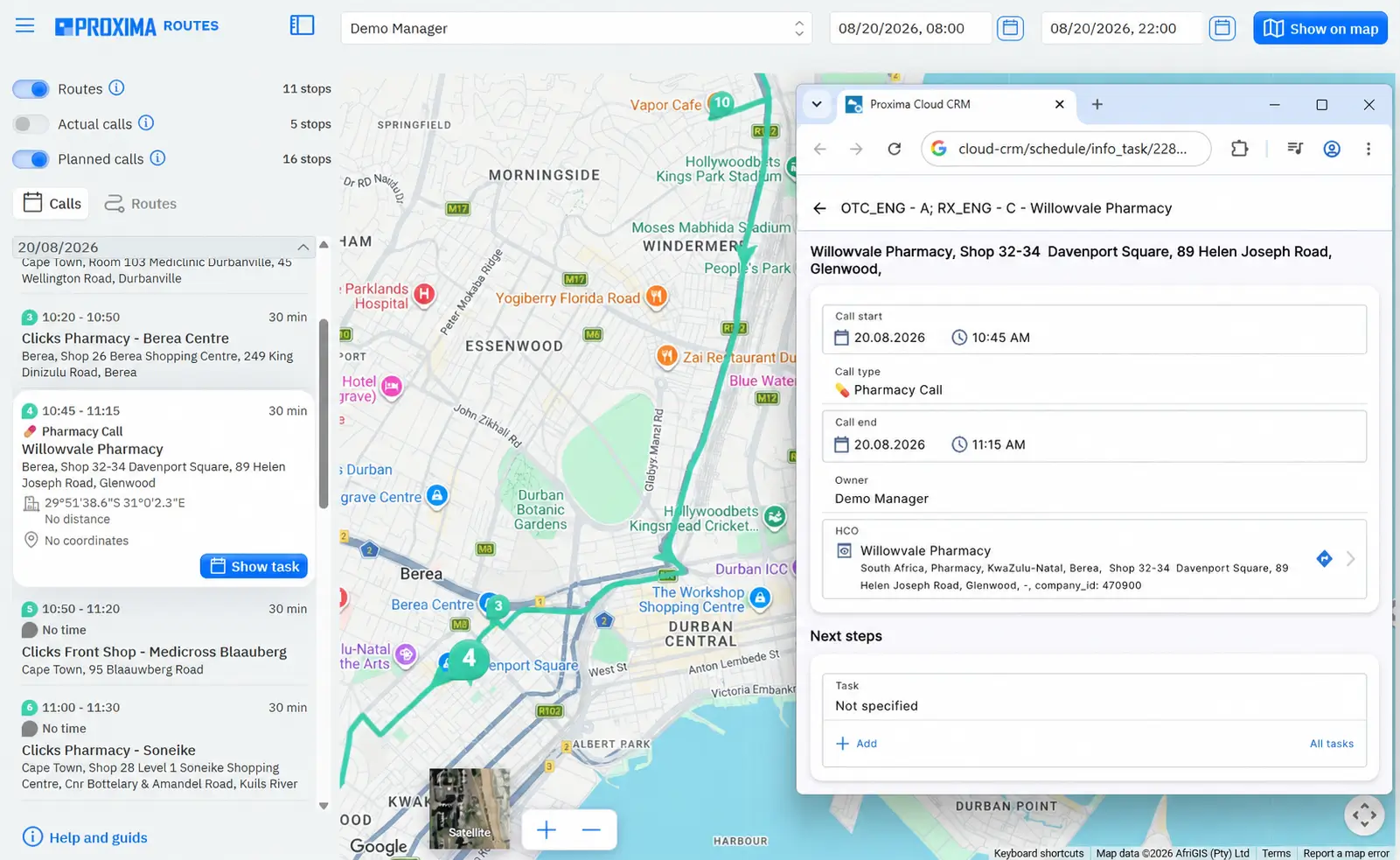
  • Routes New: building visit routes in CRM

The map marker in Routes now correctly opens the visit card in Proxima Cloud CRM instead of the previous CRM version.

Routes
Screenshot 8. Routes: the scheduled visit card opens in Proxima Cloud CRM from the map.

2.2. GeoForce 2.0: more precise territory management

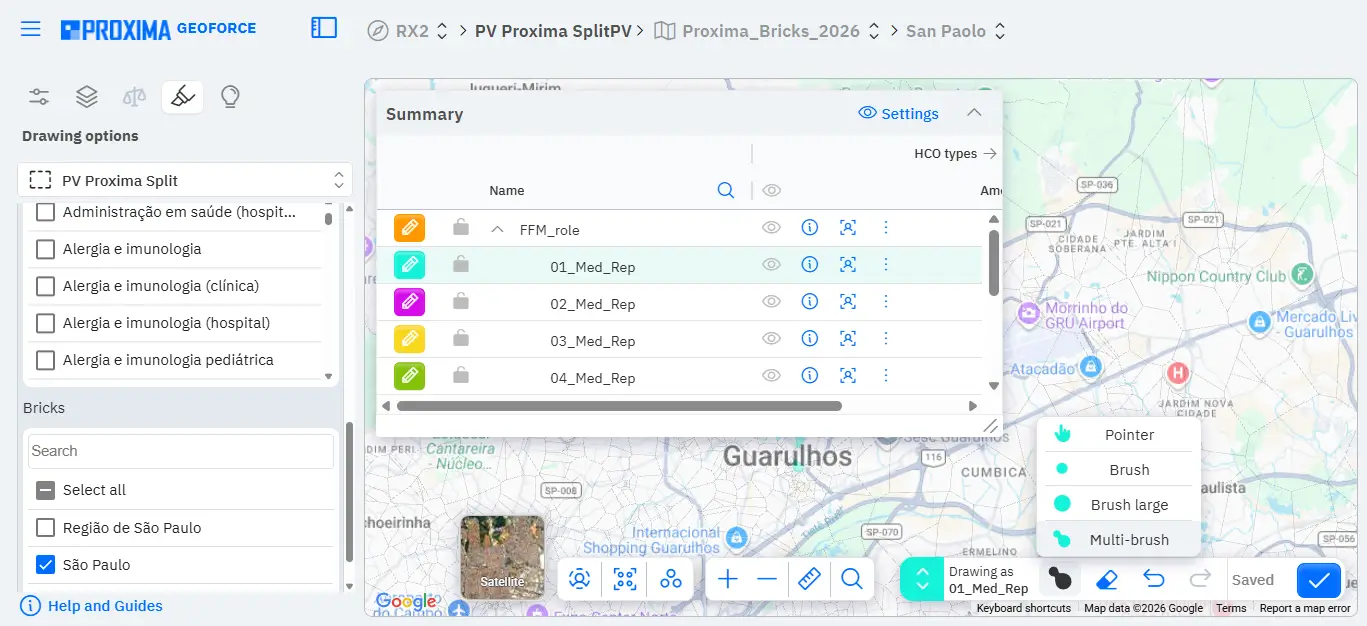
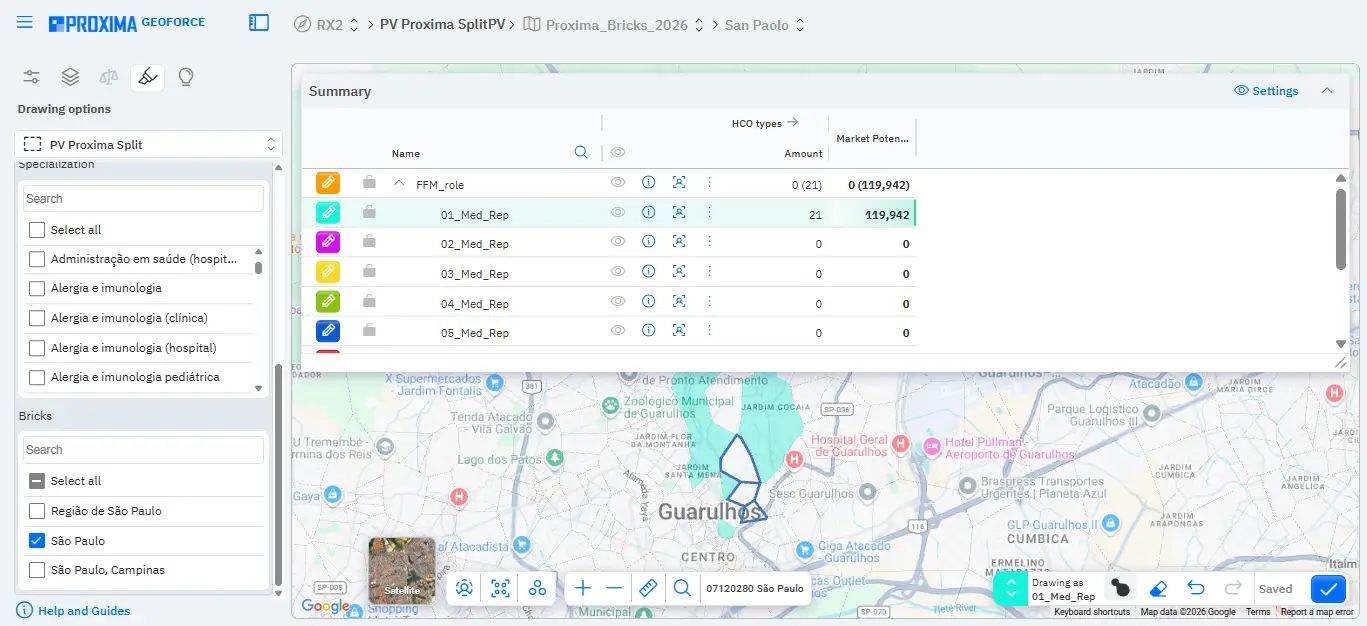
  • Unified polygon coloring at the brick level – Multi-brush.

The new Multi-brush tool assigns not only a single brick to a user with one click in drawing mode, but all polygons with the same grouping key. This works both for bricks divided into separate parts and for Voronoi polygons built from them.

Multi_brush_1
Screenshot 9. GeoForce 2.0: the Multi-brush tool.

All separate parts of a multipolygon assigned to the same field team medical representative are colored the same. The user can immediately see the complete territory, even when it consists of several geographically separate areas.

Multi_brush
Screenshot 10. GeoForce 2.0: all parts of one multipolygon share the same color and are highlighted as one manager's single territory.
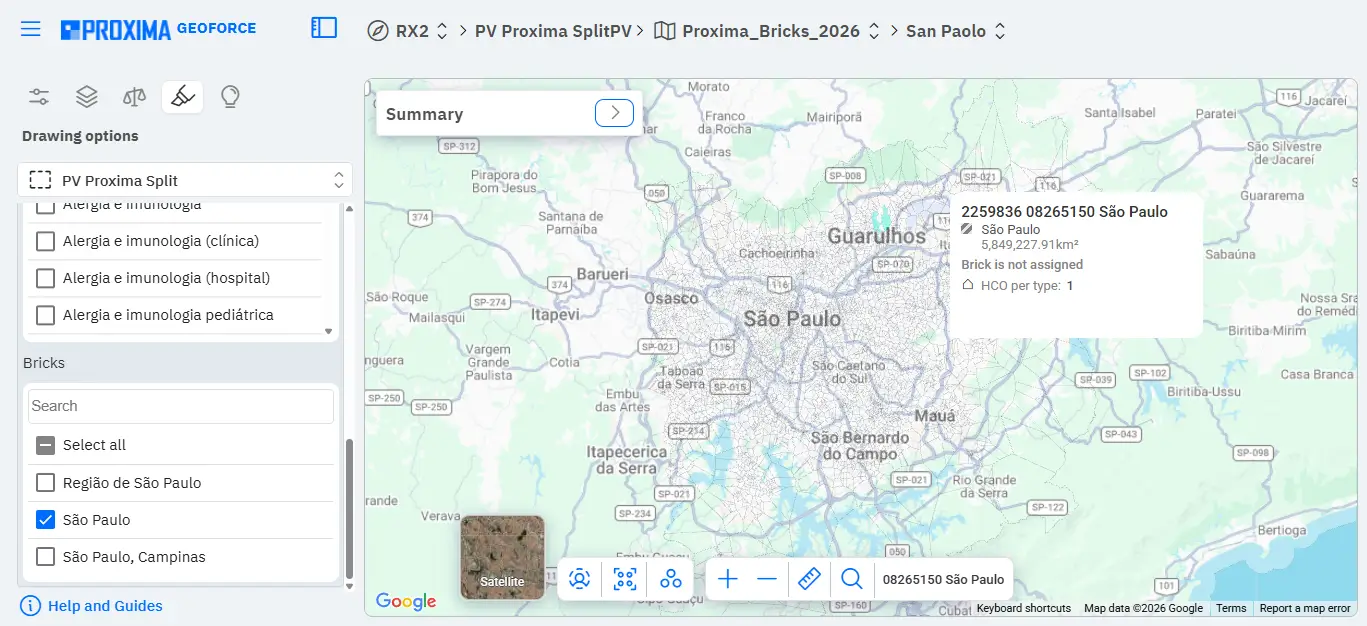
  • Selective Voronoi polygon generation

GeoForce can now generate Voronoi polygons only for selected areas without changing other territories. A separate Bricks list is now available in the settings panel, where the user selects the territories required for generation.

GeoForce_selecting_a_geolocation
Screenshot 11. GeoForce 2.0: creating Voronoi polygons only for the selected geographic object.

This makes it possible to prepare detailed responsibility areas for assignment across the field team only where needed, reduces territory creation time, saves system resources, and simplifies map visualization.

2.3. Power BI: more data for management decisions

The latest Power BI updates help managers assess team activities faster, analyze workload, and work with HCP contact data without unnecessary transitions across the system.

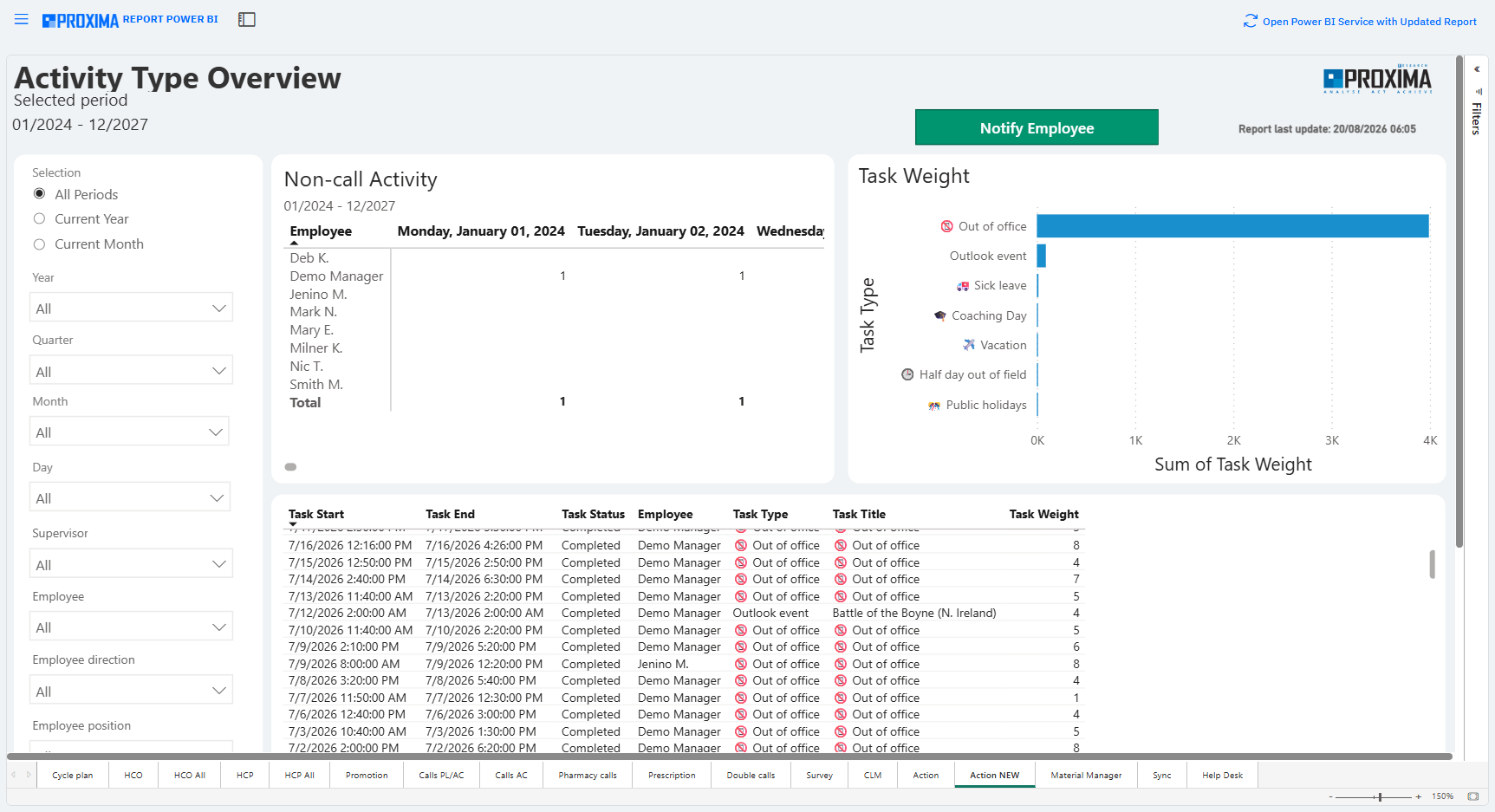
  • NEW Activity Type Overview in Action NEW Dashboard

The report adds non-call activity data to the analytics. The dashboard includes filters by period, manager, employee, job title, country, and activity type, as well as the Non-call Activity table and the Task Weight chart.

Managers can assess the actual workload of medical representatives more accurately, account for non-call tasks, and plan field force resources with better justification.

If no separate equivalent is configured for an activity type, 30 minutes of activity equals one visit; the daily value is capped at 15 activities. Only working days are included.

Action_NEW
Screenshot 12. Action NEW → Activity Type Overview: filters, Non-call Activity, and Task Weight.
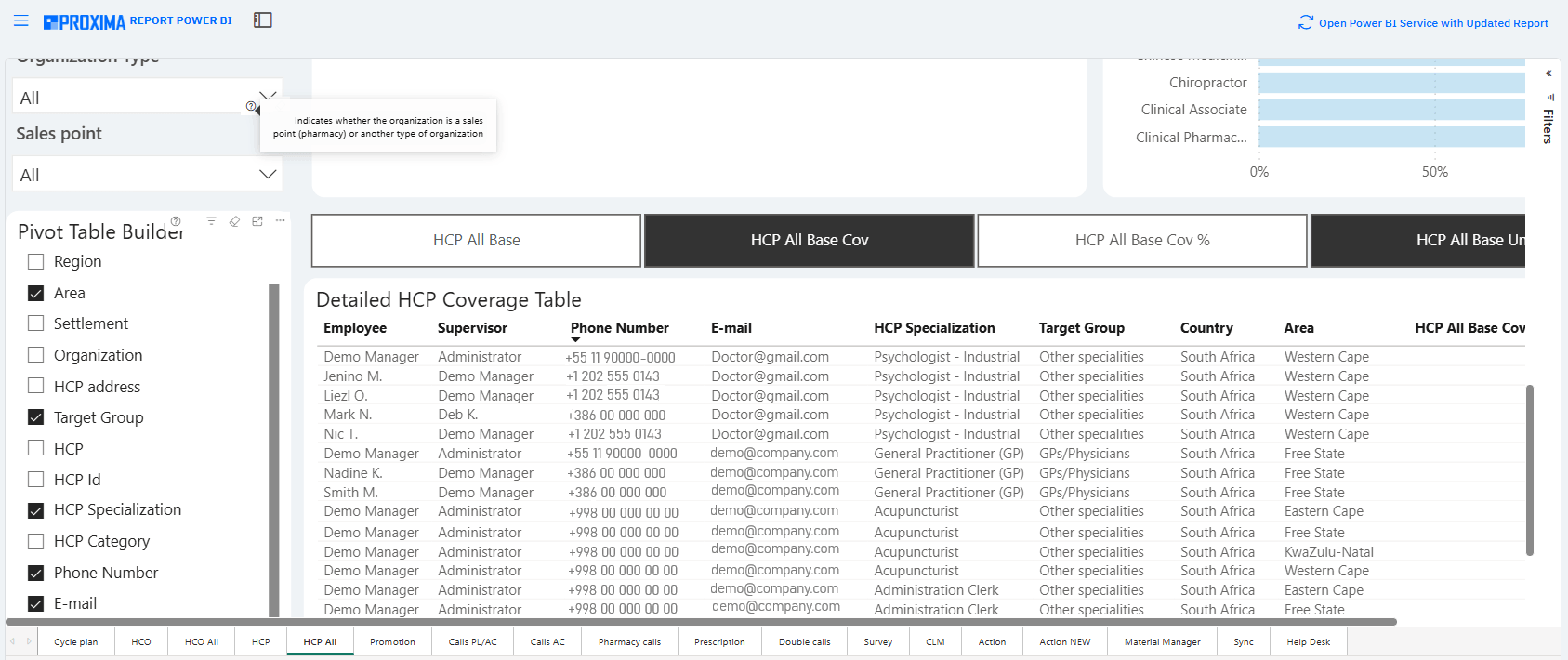
  • Fields added to the Detailed HCP Coverage Table in the HCP ALL report

HCP contact details: E-mail and Phone Number are available alongside other indicators, making it easier for managers to prepare communications, plan activities, and assess reports without additional searches in other CRM modules.

HCP_All
Screenshot 13. HCP ALL → Detailed HCP Coverage Table: E-mail and Phone Number fields.
  • Bug fixes:

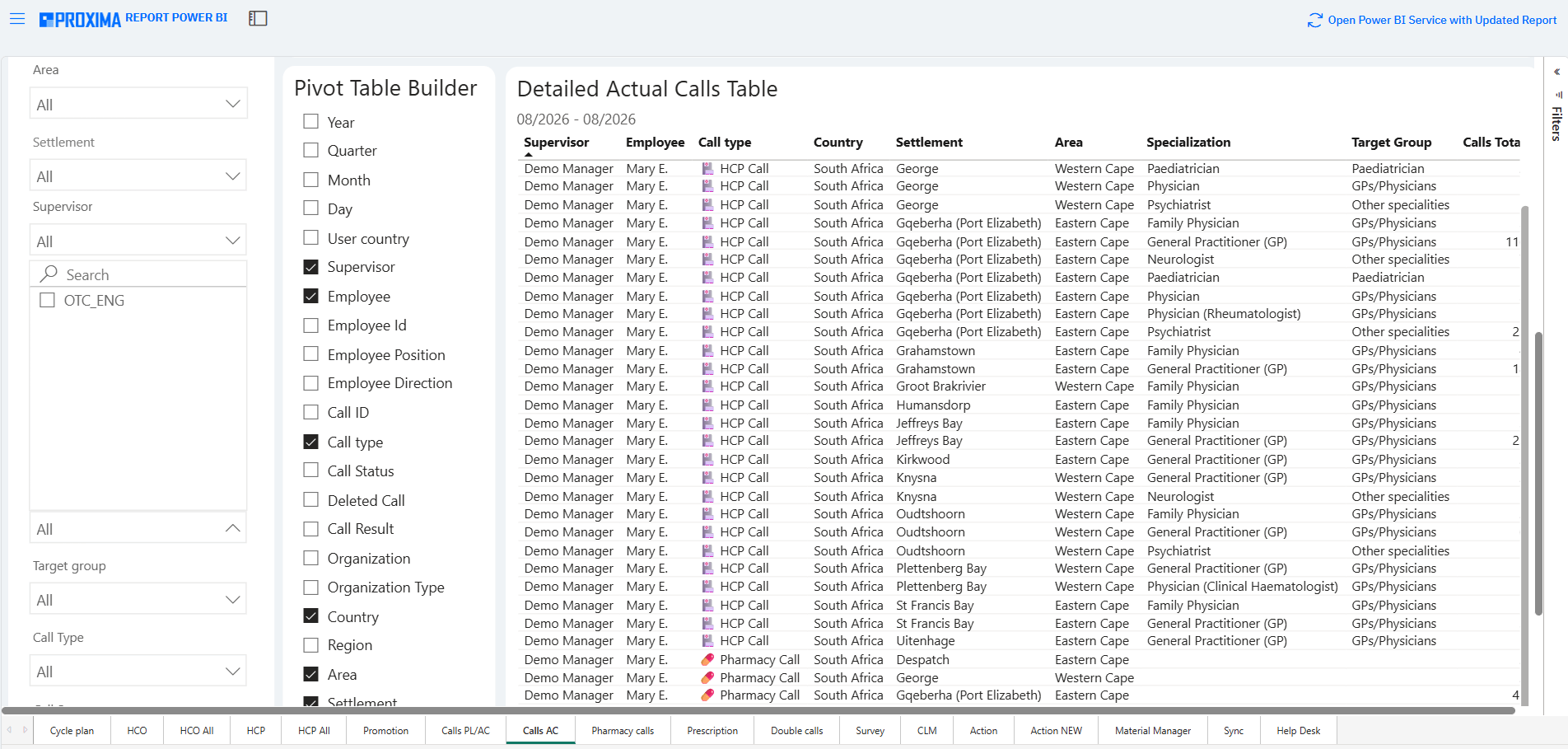
In CRM Analytics, the product direction and Target Group are now linked across all dashboard tabs. The filters for each medical representative now display only the target groups and product directions specified in that representative’s card.

In GPS Report, the order of months in the Month filter was corrected, reducing the risk of selecting the wrong reporting period.

Calls_AC
Screenshot 14. CRM Analytics reports: linked Employee Direction and Target Group filters.

2.4. Proxima Cloud CRM Platform: more context in custom objects

  • Multiple Label fields in custom object lists

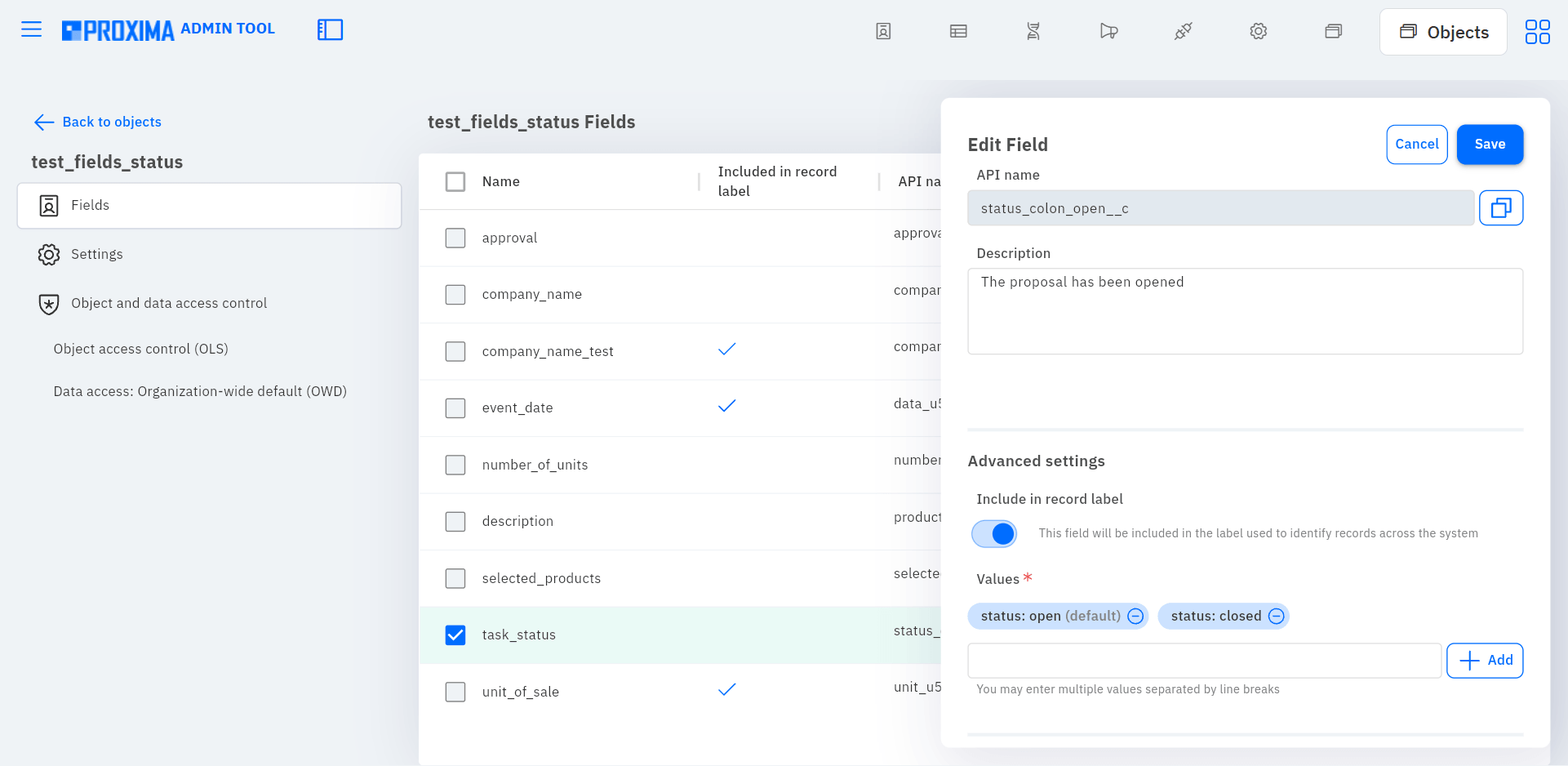
A custom object Proxima Cloud CRM can now use multiple fields, rather than just one, as the record name. The feature supports Reference, Single Select, Multi Select, Text, Date and Time, Integer or Decimal, and Boolean fields.

The Include in record label option is used for this in the settings. Administrators can choose which data to display and for which roles.

include_in_record_label
Screenshot 15. Custom object field settings: Include in record label is enabled.
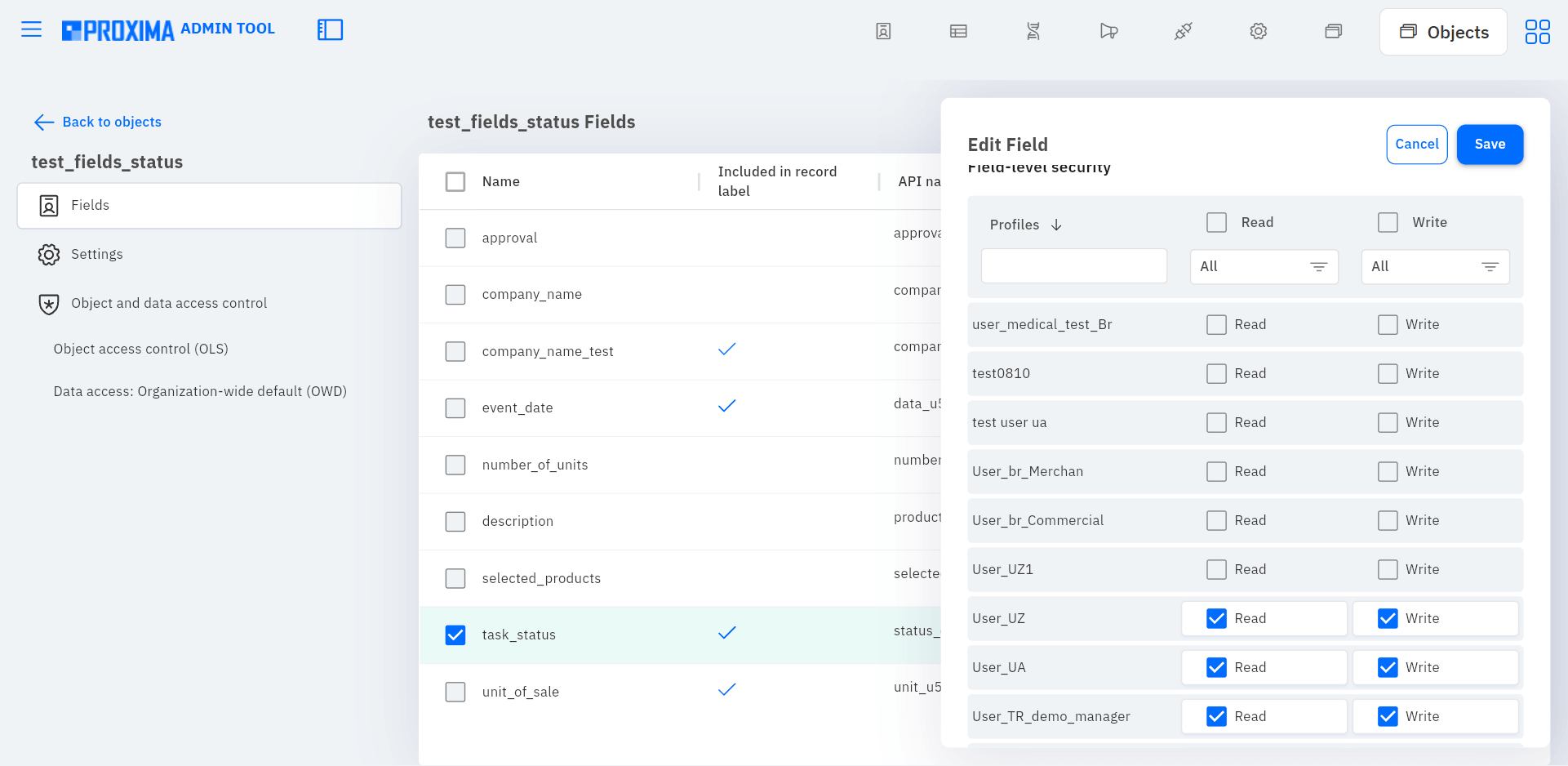
field_visibility_for_a_role
Screenshot 16. Assigning custom object field visibility to a user role.
  • More precise field search

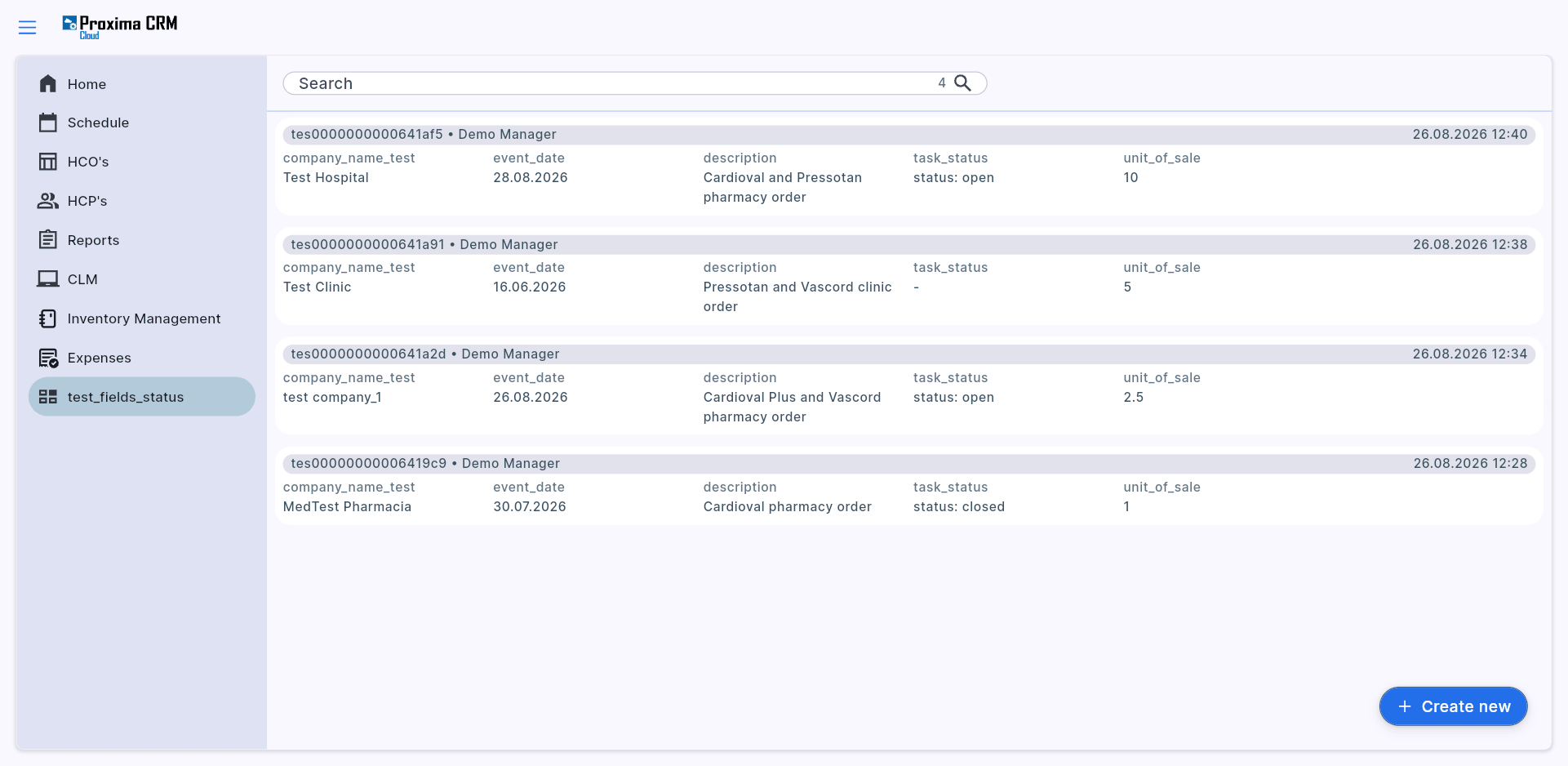
In the list, the user can immediately see several key record attributes, such as the name, status, related object, or date.

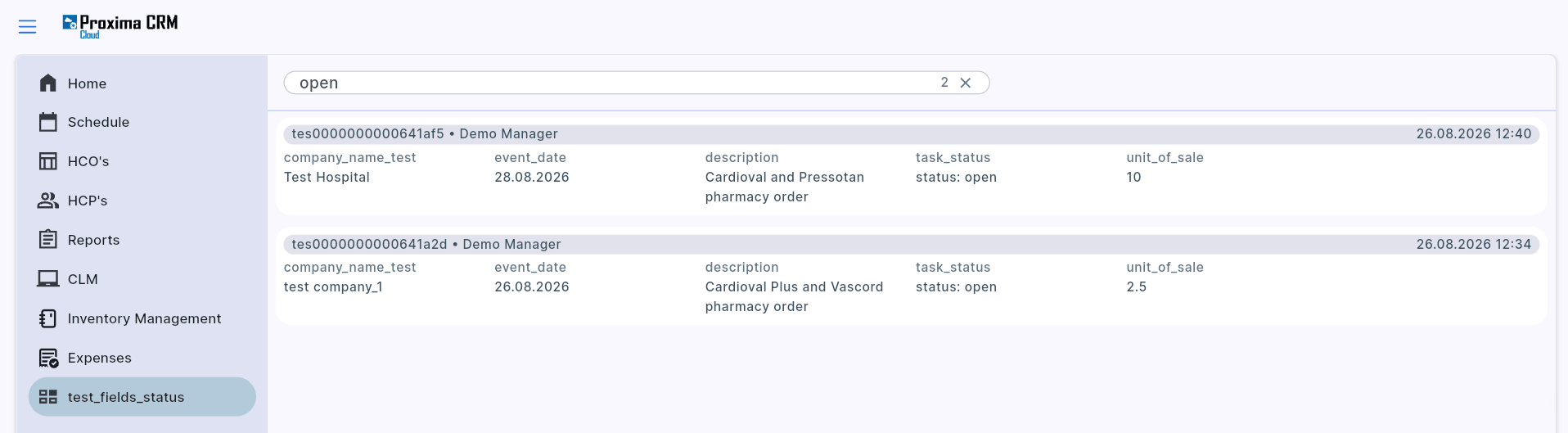
Search now works across all fields marked as Label.

Users can find the required records more easily, even when they are not searching by the primary name.

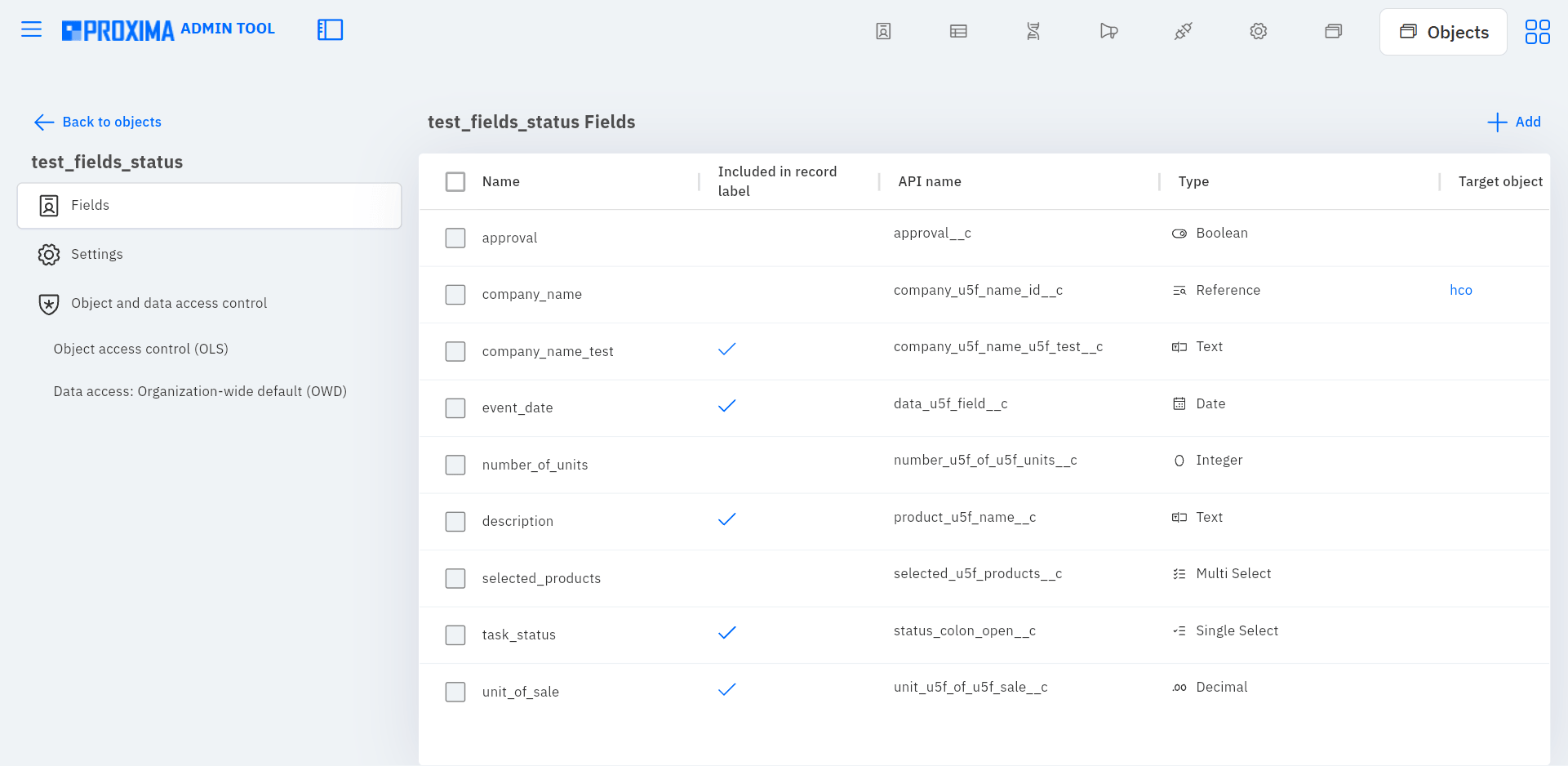
list_of_object_fields
Screenshot 17. AdminTool → Objects: list of the object's created fields.
search_by_the_values_of_Label_fields
Screenshots 18–19. A record list with multiple Label fields and a search by the value of an additional Label field.
  • Clearer related records in Datasets

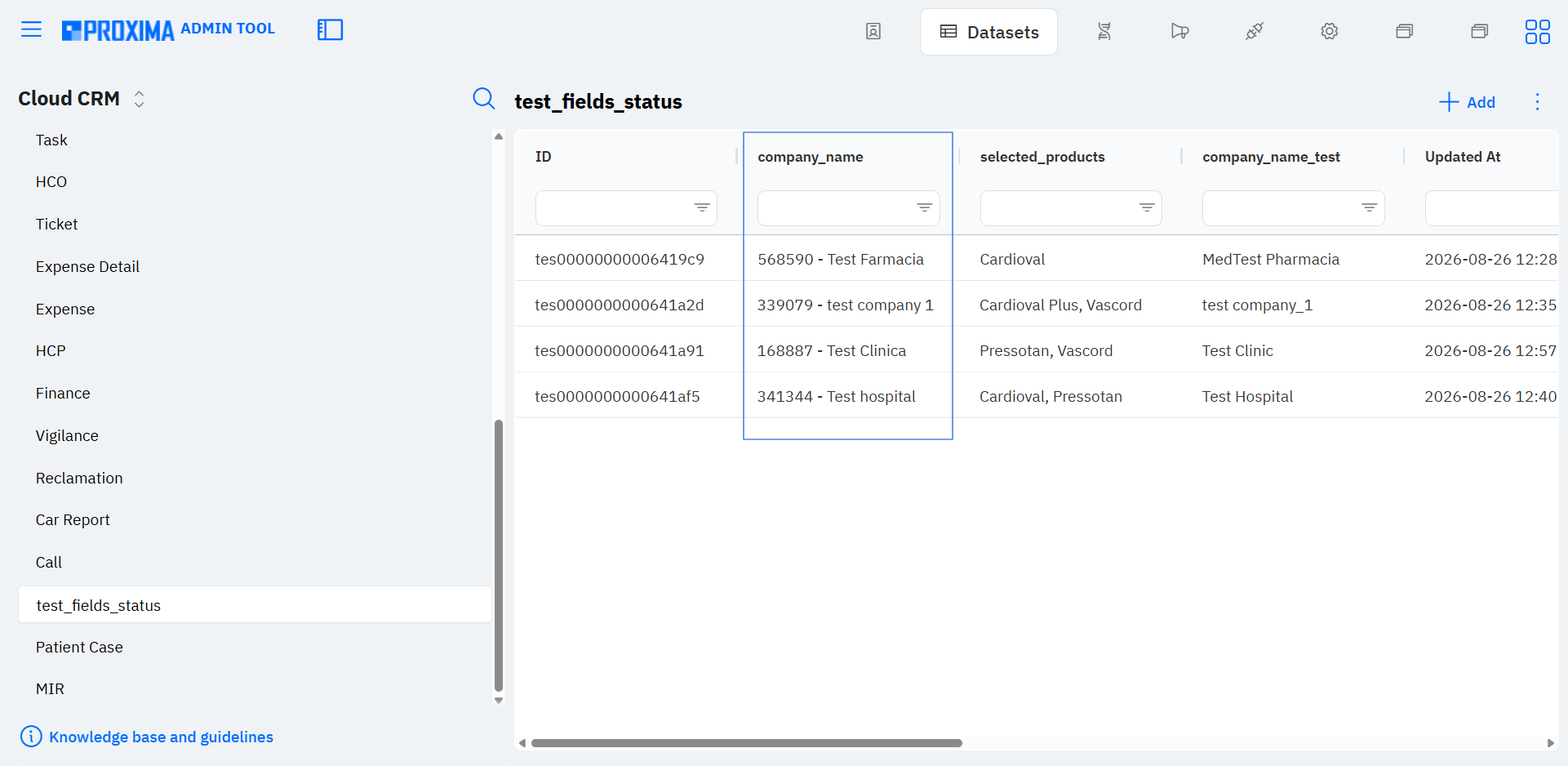
In AdminTool Datasets, the names of related records are now displayed alongside technical IDs. This speeds up data verification and reduces the number of transitions to source objects.

displaying_the_titles_of_related_records
Screenshot 20. AdminTool → Datasets: a Reference field displays clear related-record names instead of technical IDs.

2.5. Bug Fixes in v.17.0

  • fixed an issue where the app could minimize and display an error message after screen sharing started on Android devices. Screen sharing now starts correctly, and users are no longer redirected to the schedule after reopening the app;
  • pressing the Б key in the tag field is no longer recognized as Enter. Characters are added to the field, and a new tag is created only after Enter is pressed when no matches are found;
  • an empty value is no longer saved in the database after a translation is cleared;
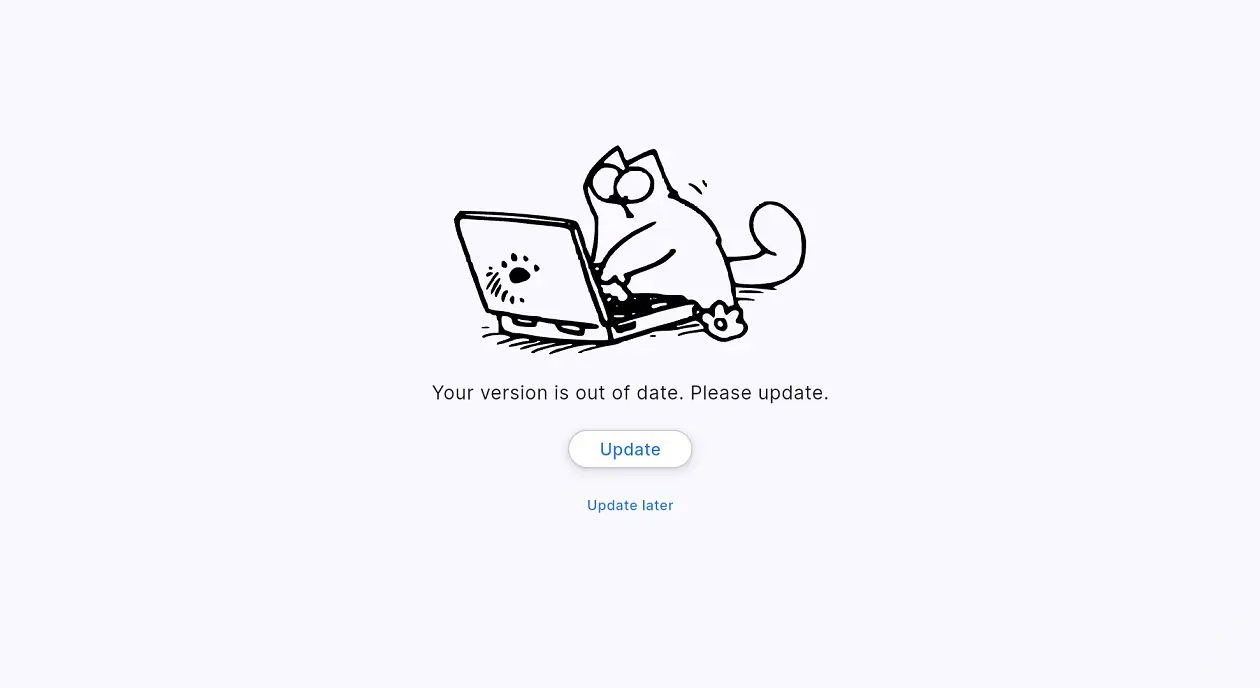
  • the new app version notification is displayed correctly again when an update is available;
  • landing page edits are applied correctly after Save is selected, and all changes are displayed on the page.

Screenshots 21–22. Notification that a new app version is available, with options to update or postpone.

3. Release v.17.1 — July 17, 2026

Minor release v.17.1 was deployed to all client environments on July 17, 2026. It continues the development of v.17.0 and focuses on two practical areas: self-service filter management in AdminTool and the integration of CRM calls with Microsoft Teams online meetings.

Release v.17.1 infographic

3.1. Proxima CRM Product. New features.

  • Filter Manager in AdminTool

A new Filter Manager has been added to AdminTool as a centralized filter management tool.

For new filters, go to AdminTool → Cloud CRM settings → Filters.

Administrators can now create different types of filters, delete them, assign visibility to everyone or according to specific conditions, edit them, and copy them.

Access to AdminTool – Cloud CRM settings is required to use the feature. New filters no longer require a separate support request.

Screenshot 23. Filter Manager: Edit, Copy, and Delete actions for the selected filter. Add a new filter.

Filters make data easier to find, are configured centrally, work consistently for all users, and preserve the integrity of result sets.

In v.17.1, Filter Manager applies to HCP and HCO sections (Clients and Companies).

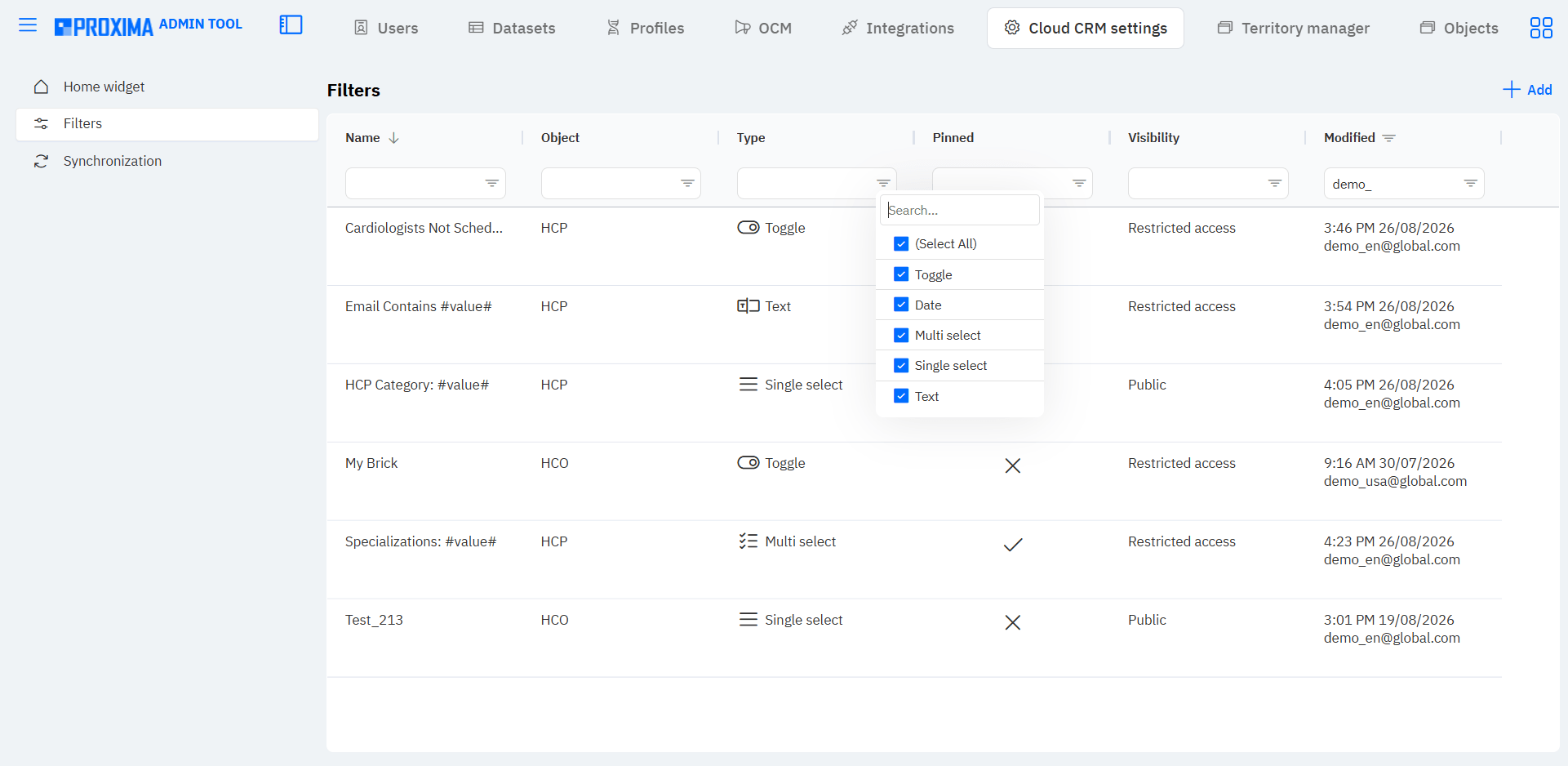
The following filter types are supported:

  • Toggle — turns a preconfigured condition on or off.
  • Text — allows the user to enter a text or numeric value when applying the filter.
  • Single Select — selects one value from the available list.
  • Multi Select — selects multiple values at the same time.
  • Date.
Filter_Manager_type
Screenshot 24. List of created filters with the following fields: Name, Object, Type, Pinned, Visibility, Modified. Filtering and filter types.

For each filter, administrators can configure condition Logic, Allowed values, Pinned status, and grouping by Visibility.

Depending on the type, a filter can be created in three or four steps.

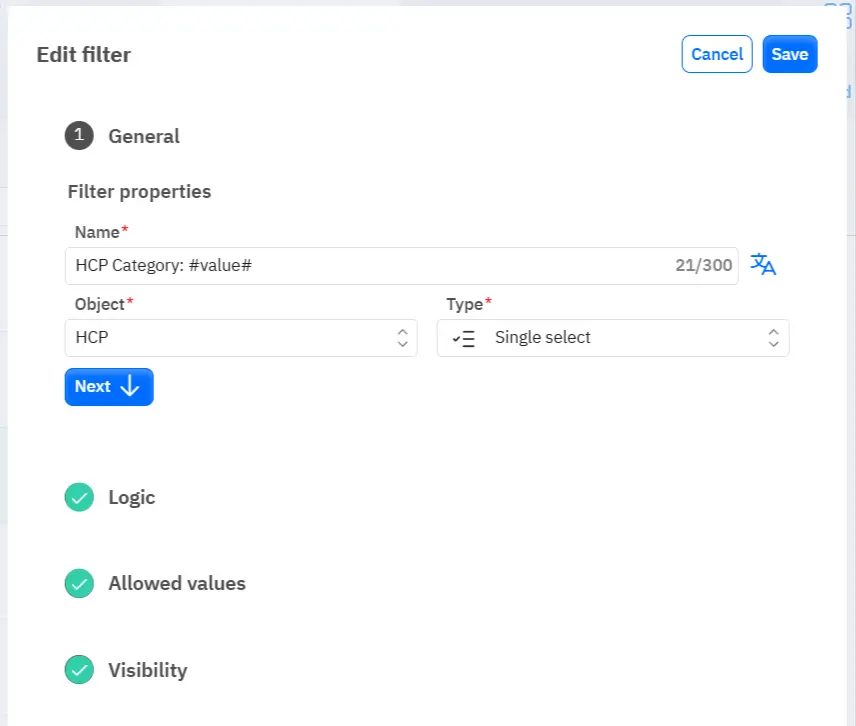
  1. General: filter name, object, and type.
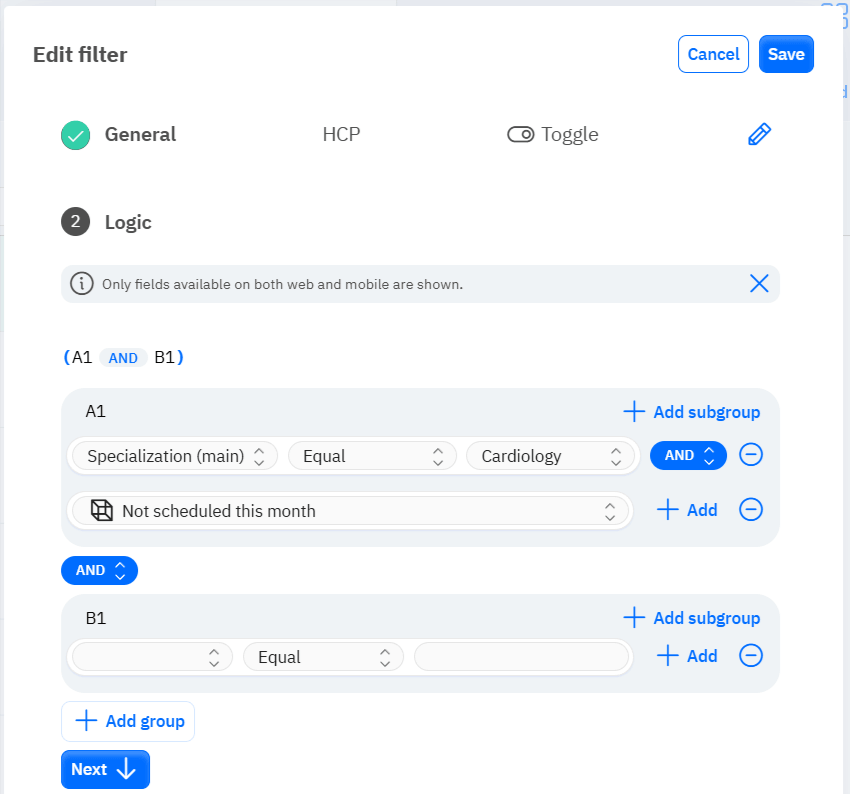
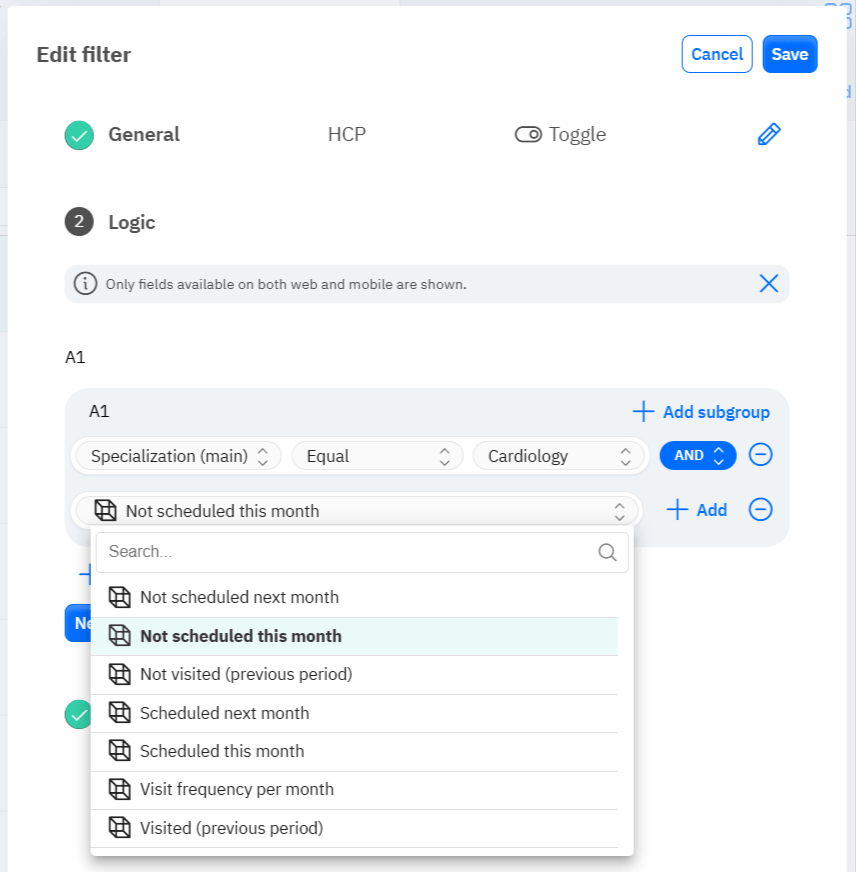
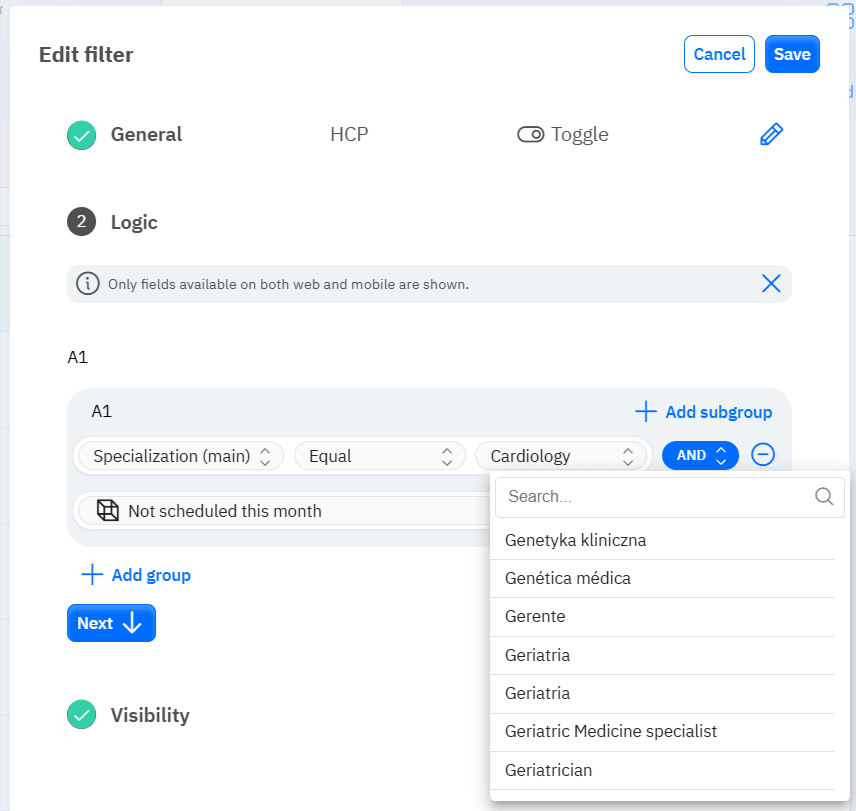
  2. Logic: one or more conditions combined into groups and subgroups using AND or OR operators.
  3. Allowed values: configured for types that support value selection.
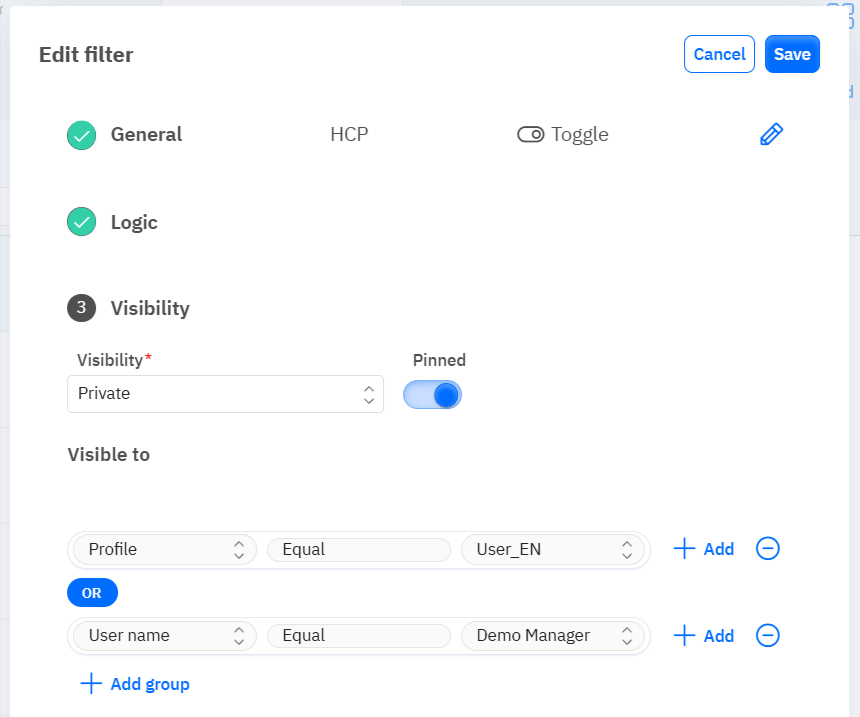
  4. Visibility: access for everyone or conditional access for specific profiles or individual users. The Pinned toggle determines the top filters displayed first in the filtering panel.

Screenshots 25–27. Steps for creating filters.

A filter can be Public or Private. For a private filter, the administrator specifies the users who can access it.

The administrator can also manage the visibility of previously created client filters.

At the Logic step, users can select ready-made presets and standard system fields.

Presets are ready-made solutions for cases where the HCP and HCO tables must be linked. The preset library is a collection of active filters already used by our clients, identified as the most in demand, and scaled in Proxima Cloud CRM.

Combined conditions must be logically compatible and consistently expand or narrow the result set. If mutually exclusive conditions are configured at the same time, the system will not find any matching records.

Screenshots 28–29. Presets and standard fields.

creating_filter_hco
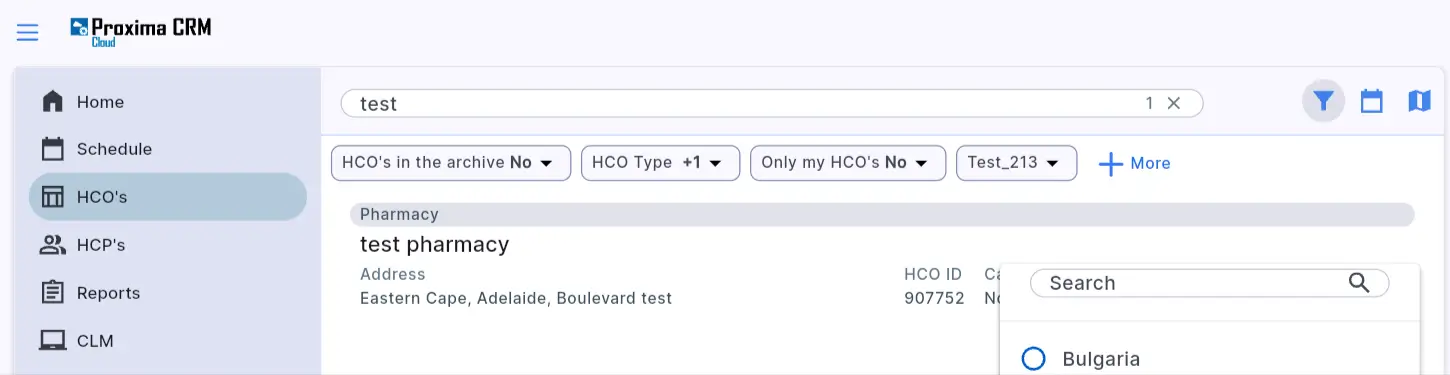
Screenshot 30. Example of available test filters working in the Companies section.
*Note. About legacy filters. Filters created before Filter Manager was introduced are also displayed in the new interface. Administrators can change their visibility, while their conditions remain locked to preserve configuration stability. If you have legacy filters that need to be deleted, contact Proxima Cloud CRM Support. 

 Filters cannot currently be created for custom objects. This capability is planned for future updates.
  • Microsoft Teams online meetings for CRM calls

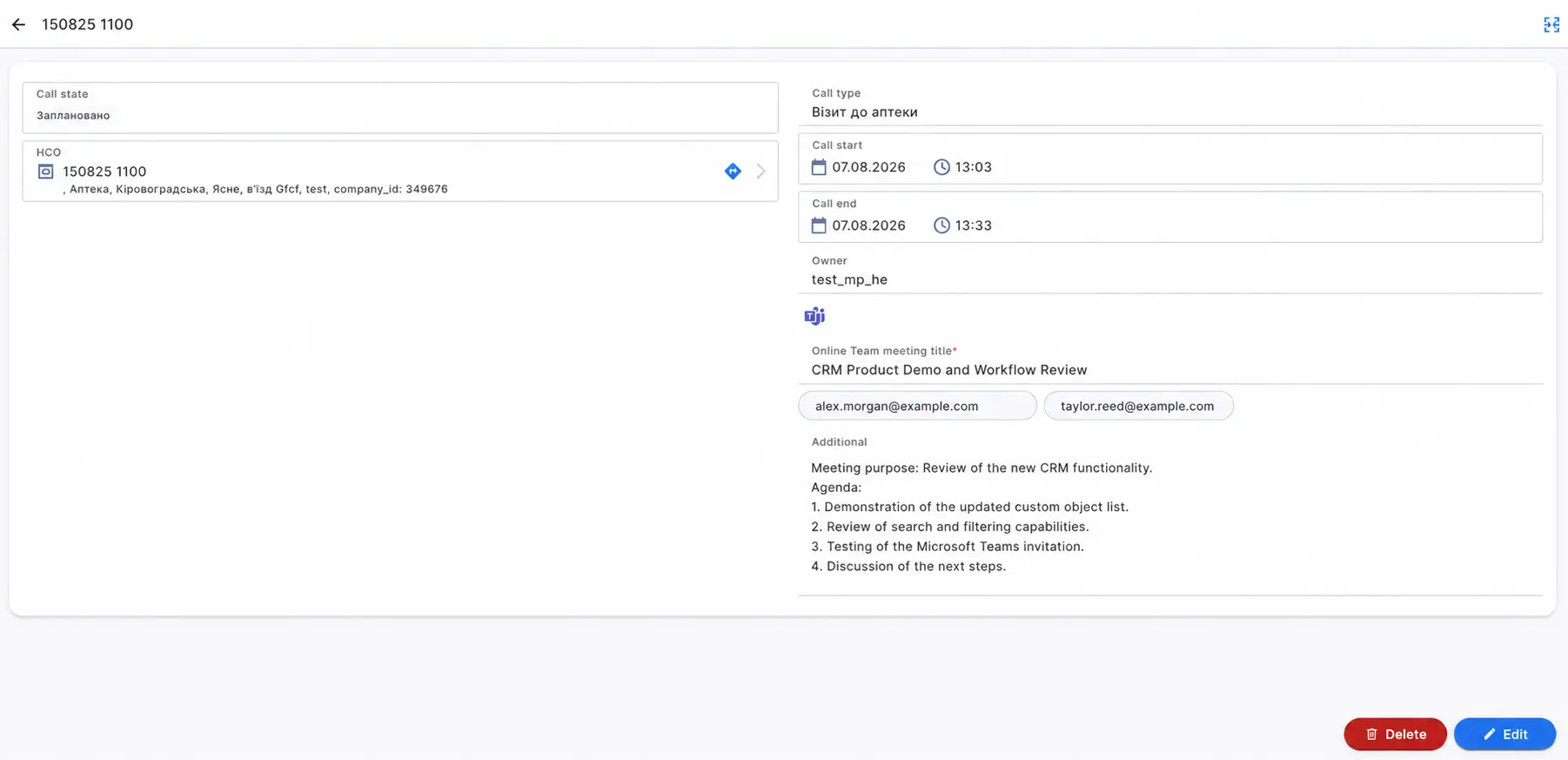
Proxima Cloud CRM users can now create Microsoft Teams online calls while planning a visit. A subject, agenda, and multiple participants can be added to the meeting. This is especially useful for teams that regularly communicate online with clients, physicians, partners, or colleagues.

Invitations are clearer: participants can see the meeting title and, when needed, its agenda directly in their calendars.

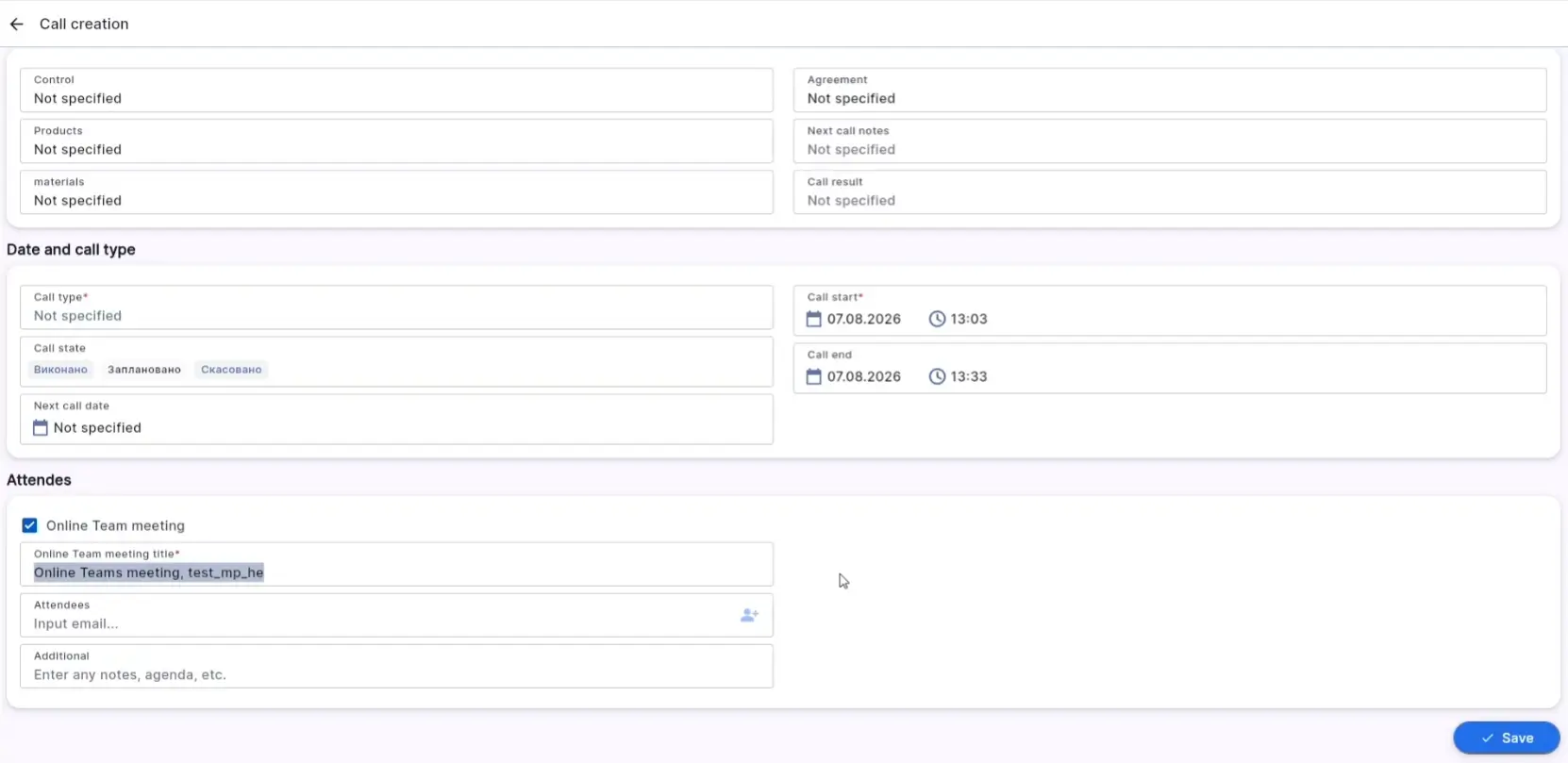
In the call or visit creation card, the user enables Online Team meeting, enters the meeting title and participants’ email addresses, and, when needed, adds a description or agenda in Additional. After the record is saved, Microsoft creates an online event in the user’s Outlook calendar and sends invitations to all participants’ email addresses.

Connecting and using the feature:

  1. Synchronize your Outlook calendar with Proxima Cloud CRM.
Teams
Screenshot 31. Synchronizing the calendar with Proxima Cloud CRM.
  1. In the CRM schedule, create a new meeting. In the meeting card, enable Online Team meeting and complete the event fields: enter the Online Team meeting title, copy and paste the invitees’ email addresses, and add a description in Additional. Save the record.
online_Teams_meeting
Screenshots 32–33. Creating a call: enabling Online Team meeting and adding the title, participants, and additional information.
  1. Microsoft creates an online event in the user’s Outlook calendar and sends invitations to the meeting participants’ email addresses.

Plan Microsoft Teams online communications with physicians, clients, partners, or colleagues in Proxima Cloud CRM visits.

Important! Do not try to add a physician from the connected Axioma database to the meeting, if the client's CRM includes one. Any number of participants can be added by copying and pasting email addresses.

3.2. Bug Fixes in v.17.1

  • Participants now correctly displays all active, non-archived physicians in the user’s area of responsibility, rather than only one physician;
  • calls to pharmacies and physicians now close correctly after all required fields are completed, the status is changed to Completed, and the record is saved;
  • slides now switch correctly during calls and in CLM;
  • the slide selection button in the lower-left corner continues to work after multiple transitions between slides.

4. What the v.17.0 and v.17.1 updates bring to the pharmaceutical business

Proxima Cloud CRM v.17 and v.17.1 combine targeted interface improvements with capabilities that directly affect pharmaceutical field team operations: territory planning, workload management, access to HCP data, and centralized CRM administration.

  • Field teams find the records they need faster and get more context without opening each object.
  • Managers see a more complete picture of activities and can plan resources more accurately.
  • Administrators adapt CRM to company processes faster and control access to filters.
  • Contact fields and Microsoft Teams make communications with HCPs and colleagues easier to plan.

Read about the Proxima Cloud CRM ecosystem products.

5. See the updates in action.

The new capabilities are already available in client and demo environments.

Request a Proxima Cloud CRM demo, to see how the updated tools work in real-world pharmaceutical business scenarios.

Contact our team, if you have any questions about the announced Proxima Cloud CRM updates.

**Note: this material uses screenshots from a demo environment with anonymized or simulated data that does not belong to real individuals.

Would you like to be contacted, learn more about our product, or receive personalized advice?

Хотите, чтобы с вами связались, узнать больше о продукте или получить персональную консультацию?

Бажаєте, щоб з вами зв’язалися, дізнатися більше про продукт або отримати персональну консультацію?

¿Le gustaría que le contactaran, conocer más sobre nuestro producto o recibir asesoría personalizada?

Gostaria de ser contatado, saber mais sobre nosso produto ou receber uma consultoria personalizada?

BLOG

Related articles

Кейс Proxima Cloud CRM: GeoForce для управління територіями у фармацевтичній компанії GSK | GSK case study: GeoForce for territory management in a pharmaceutical company

GSK

Proxima Cloud CRM Success Stories: GSK Ukraine. Country: Ukraine GSK is one of the leading

Read More
Кейс Proxima Cloud CRM: GeoForce для управління територіями у фармацевтичній компанії GSK | GSK case study: GeoForce for territory management in a pharmaceutical company

GSK

Proxima Cloud CRM Success Stories: GSK Ukraine. Country: Ukraine GSK

Read More

Запросіть демонстрацію функцій Proxima Cloud CRM

Залиште свої дані, щоб дізнатися, як це працює
Будь ласка, введіть коректне ім'я (не лише цифри).
Використовуйте коректну корпоративну адресу пошти.
Введіть коректний номер телефону.

Request a Demo of Proxima Cloud CRM Features

Leave Your Details to See How It Works
Please enter a valid name (not just digits).
Please use a valid corporate email address.
Please enter a valid phone number.

Unlock your free PDF

AI Under the Hood of Pharma CRM

Download our practical playbook for pharma leaders